
Guides / Getting started
Your first 30 minutes with F-Biz
You do not need a training course—just a phone, a PIN, and a short checklist. Here is the fastest path from install to your first recorded sale.
Part of the Start here path on the guides hub. In the app, look for the green Get your first sale card on the dashboard—it mirrors the steps below.
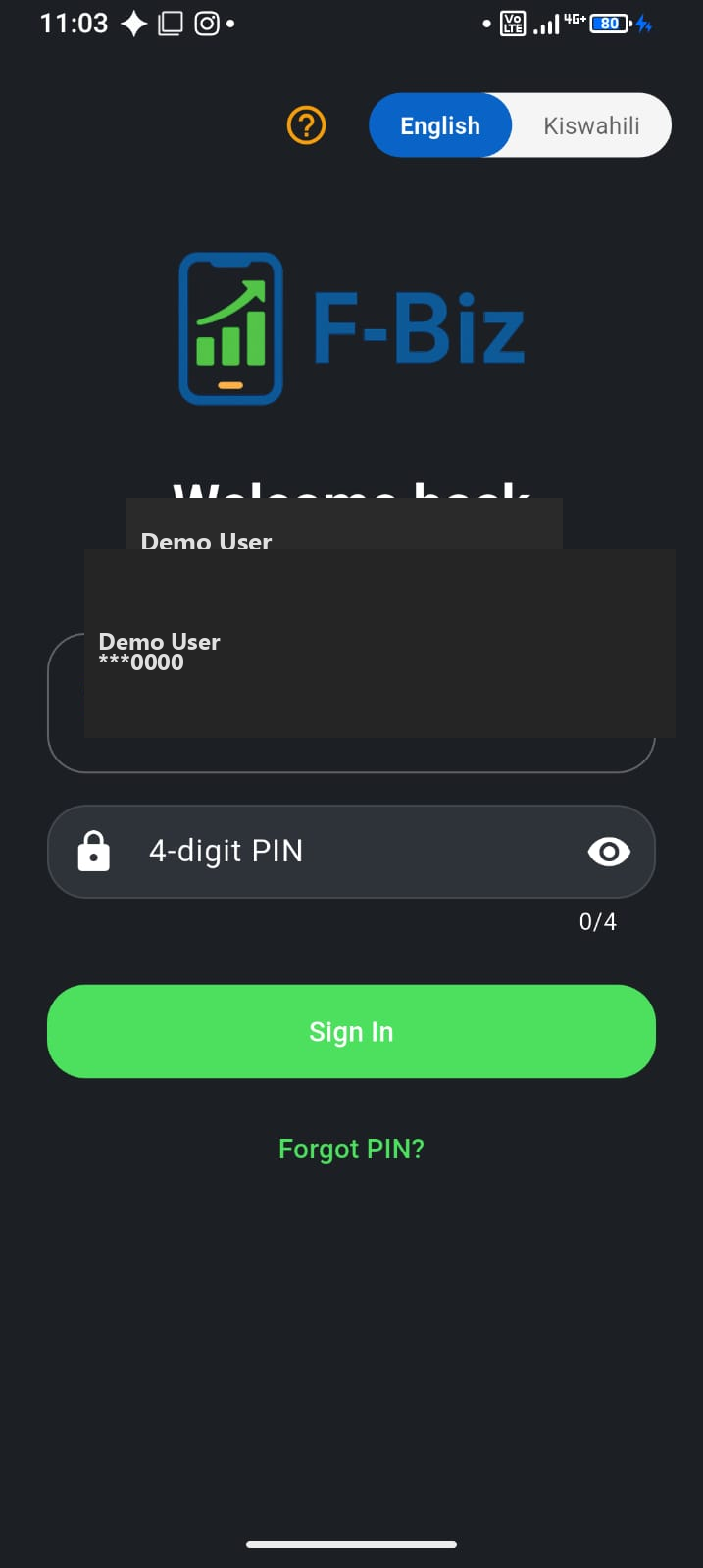
Minutes 0–10: Account and business
- Download F-Biz by Fayvad from Google Play
- Sign up with phone or email; set a 4-digit PIN
- Create your business—pick goods shop, service business, or wholesale & delivery
- Add business name and location (helps reports and Market later)
Prefer Kiswahili? Switch language at login →
In-app checklist (fastest path)
After you create your business, the dashboard shows a green Get your first sale card until you complete one sale. It has two steps—same as this guide:
- Add an item you sell — opens Items
- Record a sale — opens Sell
The card disappears automatically after your first sale. You can dismiss it with “Not now” if you prefer this page instead.
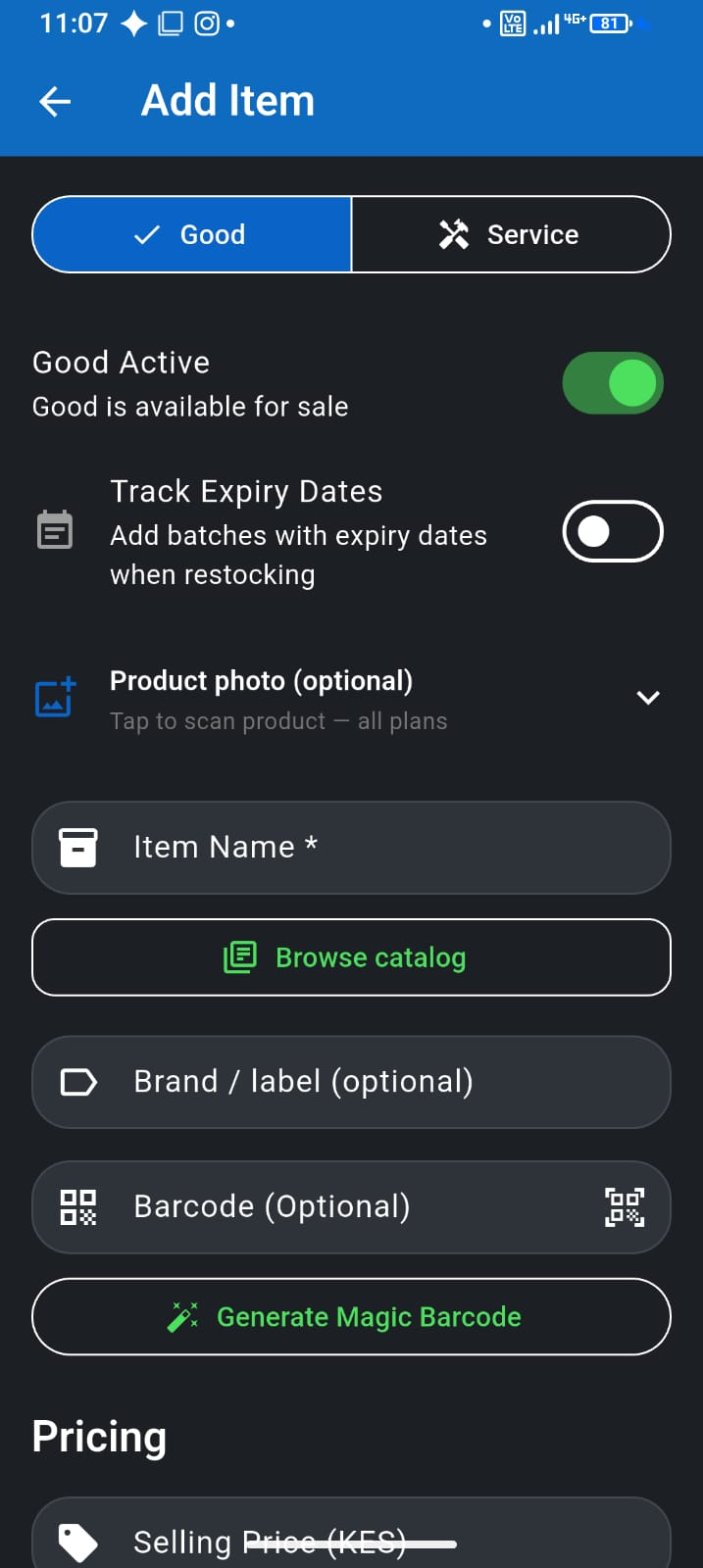
Minutes 10–20: Catalogue
- Open Items and add 5–10 products you sell every day
- Enter sell price; add stock quantity if you track it
- Skip the long tail for now—expand after your first week
Later: Duka inventory · Receive & adjust stock
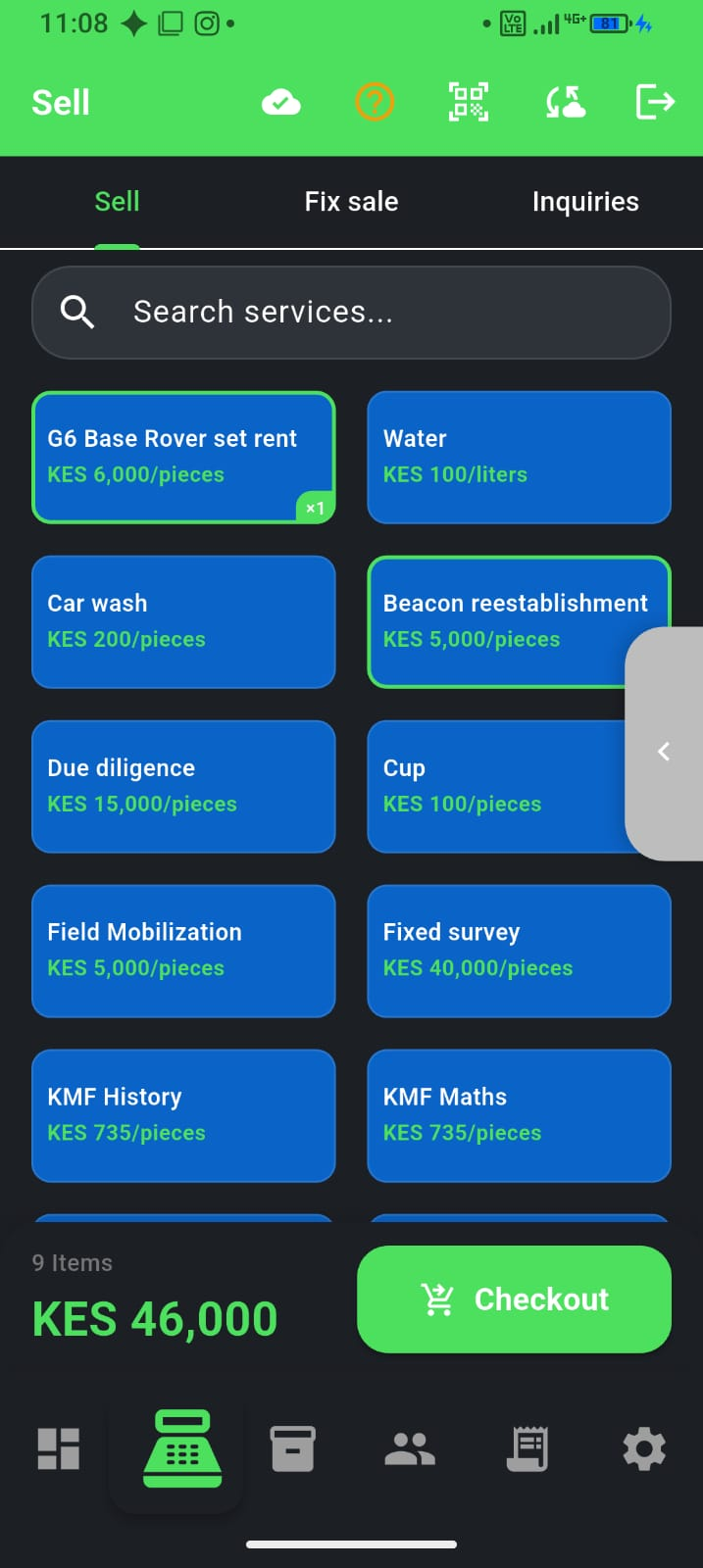
Minutes 20–30: First sale
- Tap Sell from the dashboard or bottom bar
- Add items to the cart and open checkout
- Choose cash or M-Pesa (M-Pesa on Pay As You Go and above)
- Complete the sale—check Transactions to confirm it saved
Next for payments: M-Pesa at the counter →
You're done with the first sale
Check the dashboard: Sales today should show your receipt. When customers pay deni later, that money appears under Collected today—not as a second sale. Sales vs collections →
What to do next
- Mini or Full mode — lighter counter vs full six-tab app
- M-Pesa at the counter
- Expenses and real profit
- Track customer deni
- Close the day
Or browse by task on the guides hub.