
Guides / Turbo checkout
Turbo checkout for busy counters
When the queue is long, full cart checkout can feel heavy. Turbo mode is a focused sell surface: search or tap items fast, take cash (and change), and get back to the next customer.
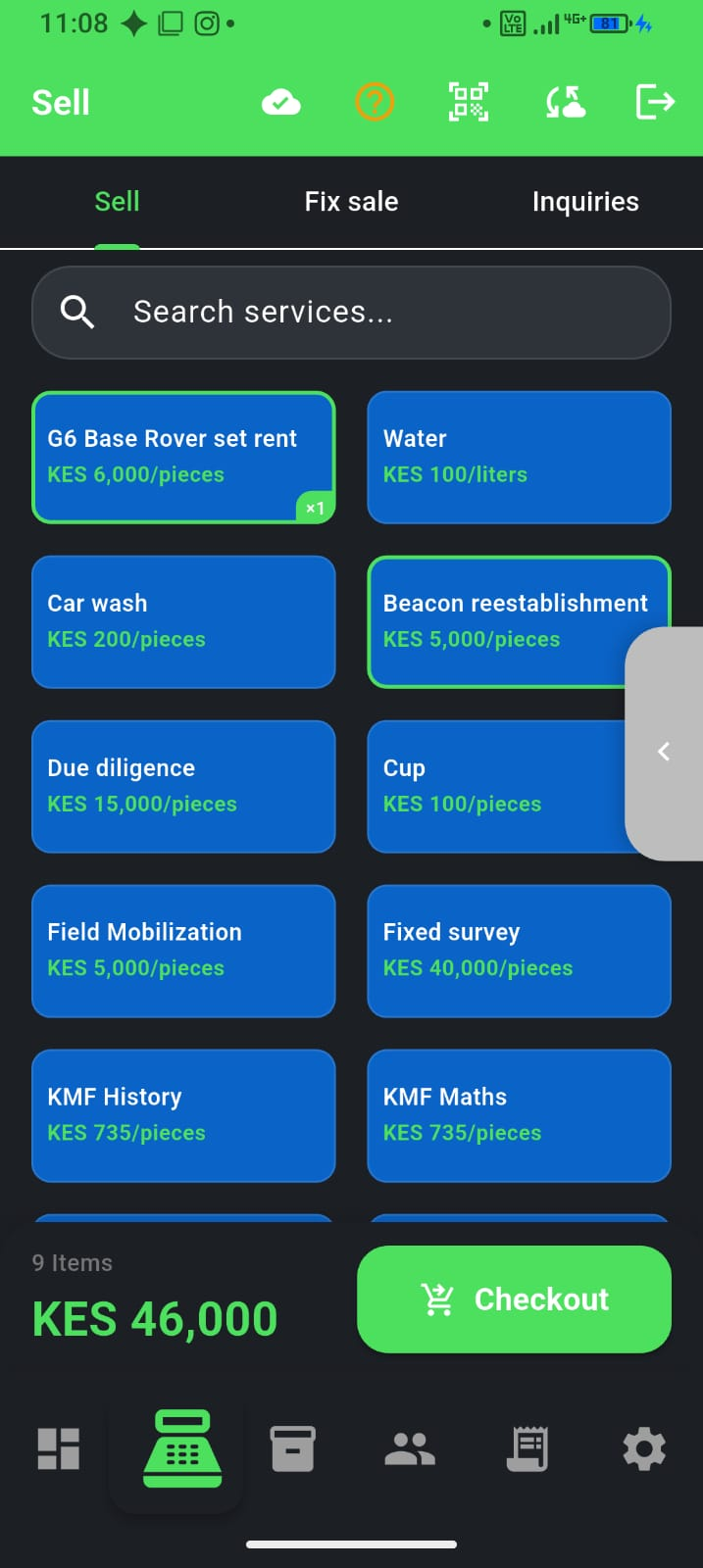
When to use Turbo
- Rush hours, kiosks, and high-turn counters with known catalogue items
- Cash-heavy lines where speed matters more than complex carts
- Weighted / measured items when you need amount or weight at the till
How it works
- Open Turbo from the app when it is available for your business
- Search by name or barcode, or tap a product tile to add it
- Complete cash sales quickly—including change calculation when the customer tenders more
- Clear the sale or exit Turbo when you need the full Sell screen again
Use Full sell when you need discounts, split payments, credit (deni), or multi-step carts Turbo is not meant to replace.
Turbo vs Mini Lite sell
- Mini Lite sell — part of Simplify Experience; lighter daily shell
- Turbo — a dedicated rush-hour sell mode you enter and exit on purpose
- Both favour tap speed; neither removes your need for accurate inventory behind the scenes